EXPORTING STORY THUMBNAIL PAGES IN STORYBOARD PRO
We will be using Storyboard Pro to format your final images and export final story panels to a Storyboard or Thumbnail sheet. SBP can export a variety of information such as shot numbering and duration, action and camera notes, and dialogue etc. For our purposes we will be exporting limited written information to allow more panels to be printed per page providing more of an overview of the storyreel. 30 panels per page to be exact.

SBP EXPORT STORYBOARD WORKFLOW:
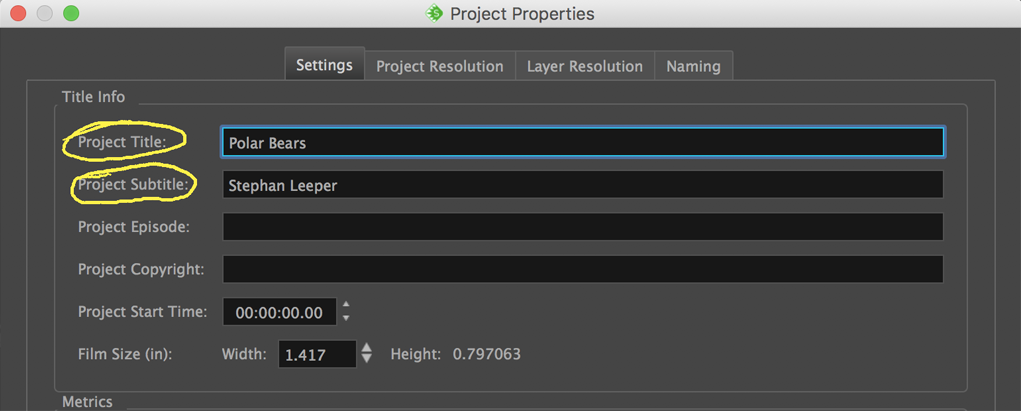
1. Complete Storyreel in Storyboard Pro, Name Project & Add Subtitle: To name your project and add a subtitle go to Storyboard/Preferences. . . in the top menu and name your project title and enter your name in the Project Subtitle.
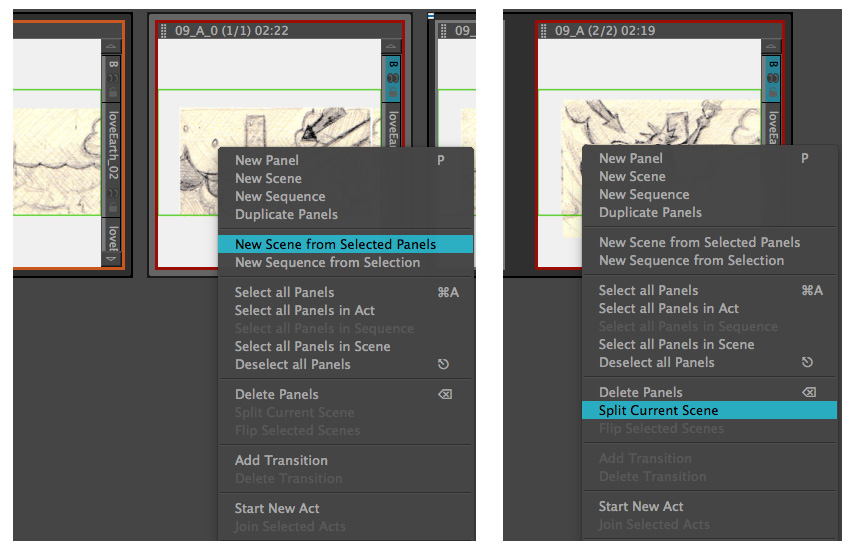
2. Identify Shots/Scenes and Panels: If you haven't made this distinction already, you will need to use the combine and split panel tools in SBP to distinguish between panel and scene/shot changes. I find this process is easiest in the Thumbnail View.
To combine: select panels, right-mouse and select "New Scene from Selescted Panels". To split: right-mouse and select "Split Current Scene".
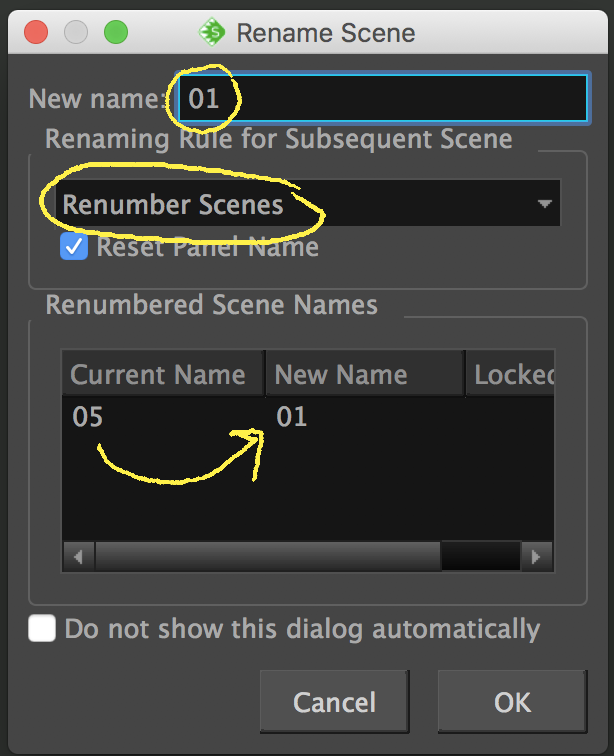
3. Rename/Number Scenes: Select the first Scene in the Timeline (or Thumbnail view) and go to the top Storyboard menu and select Rename Scene. Enter 01 in the "New name" window and select "Renumber scenes" from the drop-down. Notice that all your scenes will be renamed in the table below. Click OK.
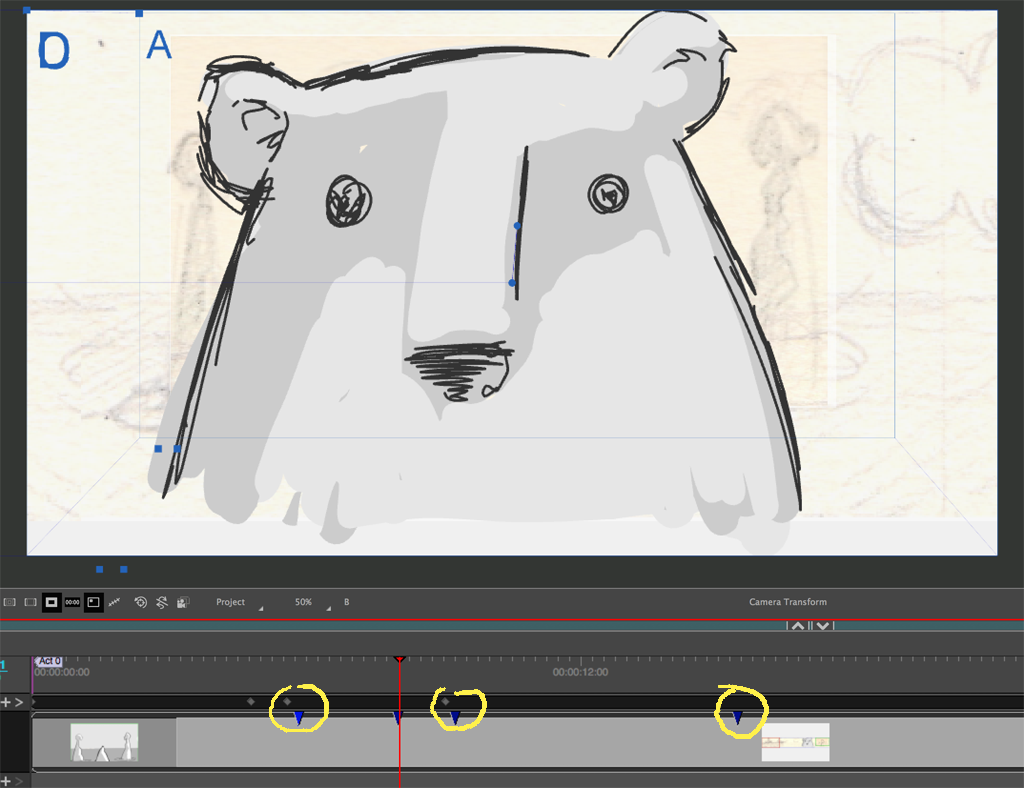
4. Place Snapshots to Indicate Key Panels: This step is extremely important if you need to show stages of a camera move or key-framed objects. In both cases, the default of exporting only panel changes won't communicate important action beats.
To address this, you will need to place Snapshot Markers on the timeline to indicate each action beat to be exported to your final boards. To do this, move the cursor to the action beat on the timeline and go to Storyboard/Snapshot in the top menu.
Notice the blue marker that is placed on the timeline. Now SBP will export an image wherever you have placed a snapshot marker.
5. Import Profile and Export Storyboard PDF: The Export PDF option are extremely powerful and therefore complicated. To make things easy, I have posted two profiles that you can download, import and implement.
- Download and save. JSL_SBP_storyThumbsSettings.
- Go to File/Export/PDF. . . to open the export window.
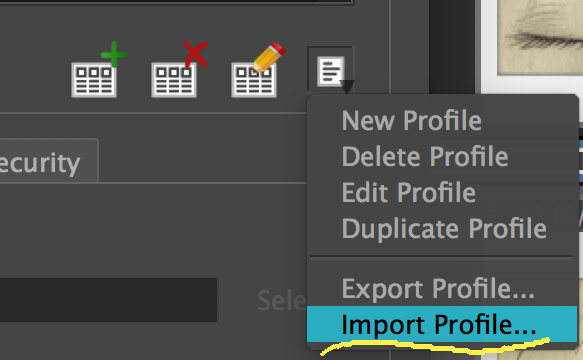
- Go to the menu at the bottom right of the PDF Export Parameters list. Import the downloaded file as a new profile.
- Select the newly imported JSL_storyThumbs profile depending on whether you will be using dialogue.
.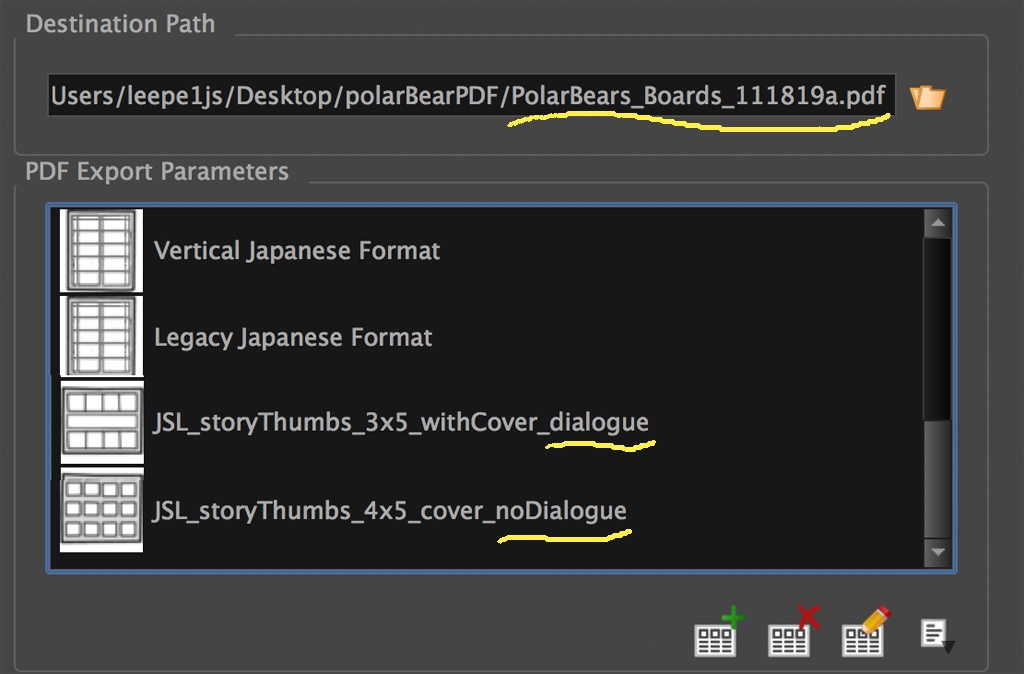
- Browse to set export destination, name your PDF file and click OK.
- Preview the PDF file and make changes if you are not pleased.
Stephan Leeper/Central Michigan University 2019